 TableGrip
Connections
Connecting to a database
Every field of the connection dialog, the URL formats it understands, SSH tunnels and TLS.
Open the connection dialog with New Connection… from the explorer's + menu, the connection menu in the title bar, or Go to anything. To change an existing connection, right-click it → Edit…. Delete… in the same menu removes it, together with its saved passwords.
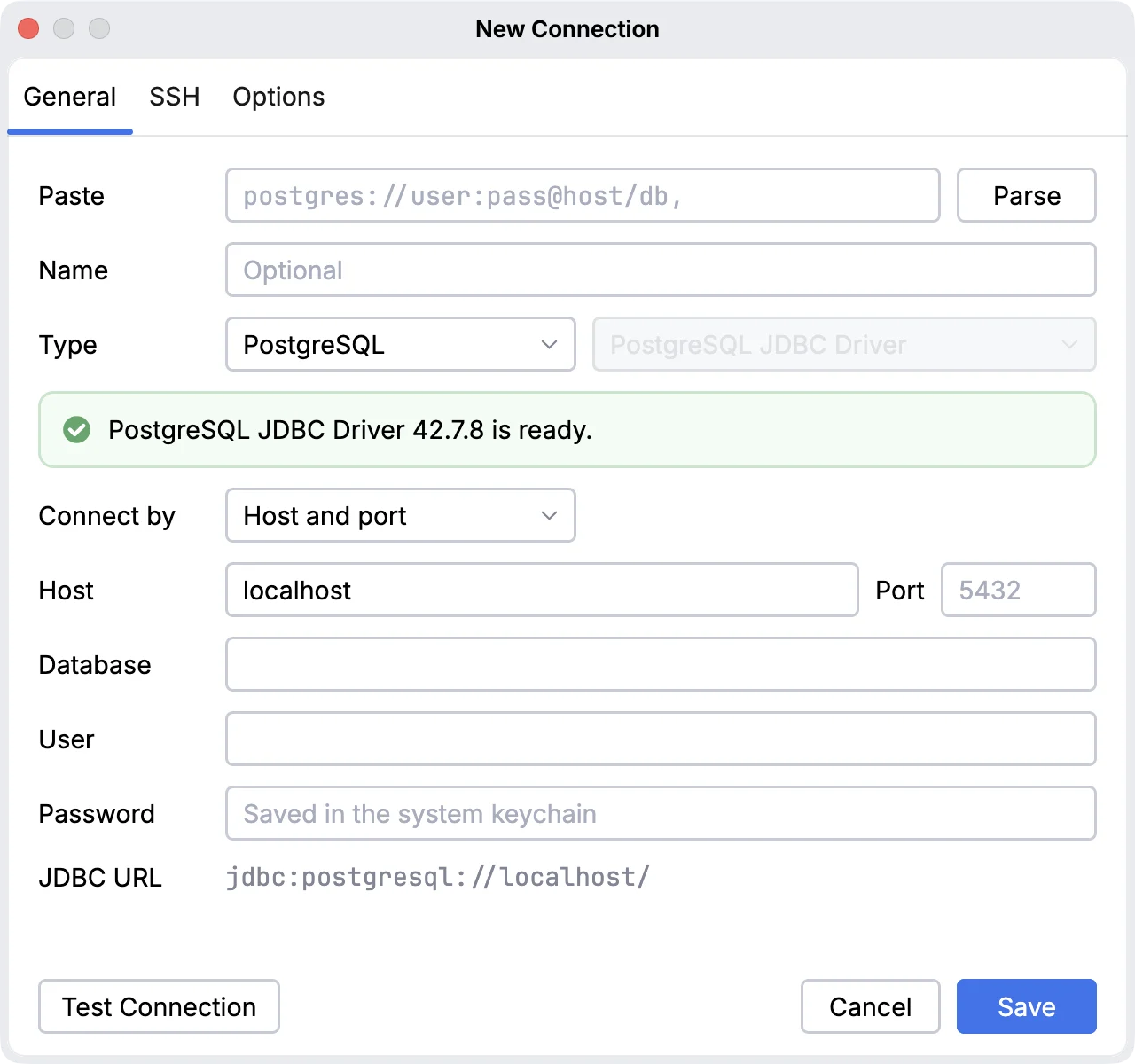
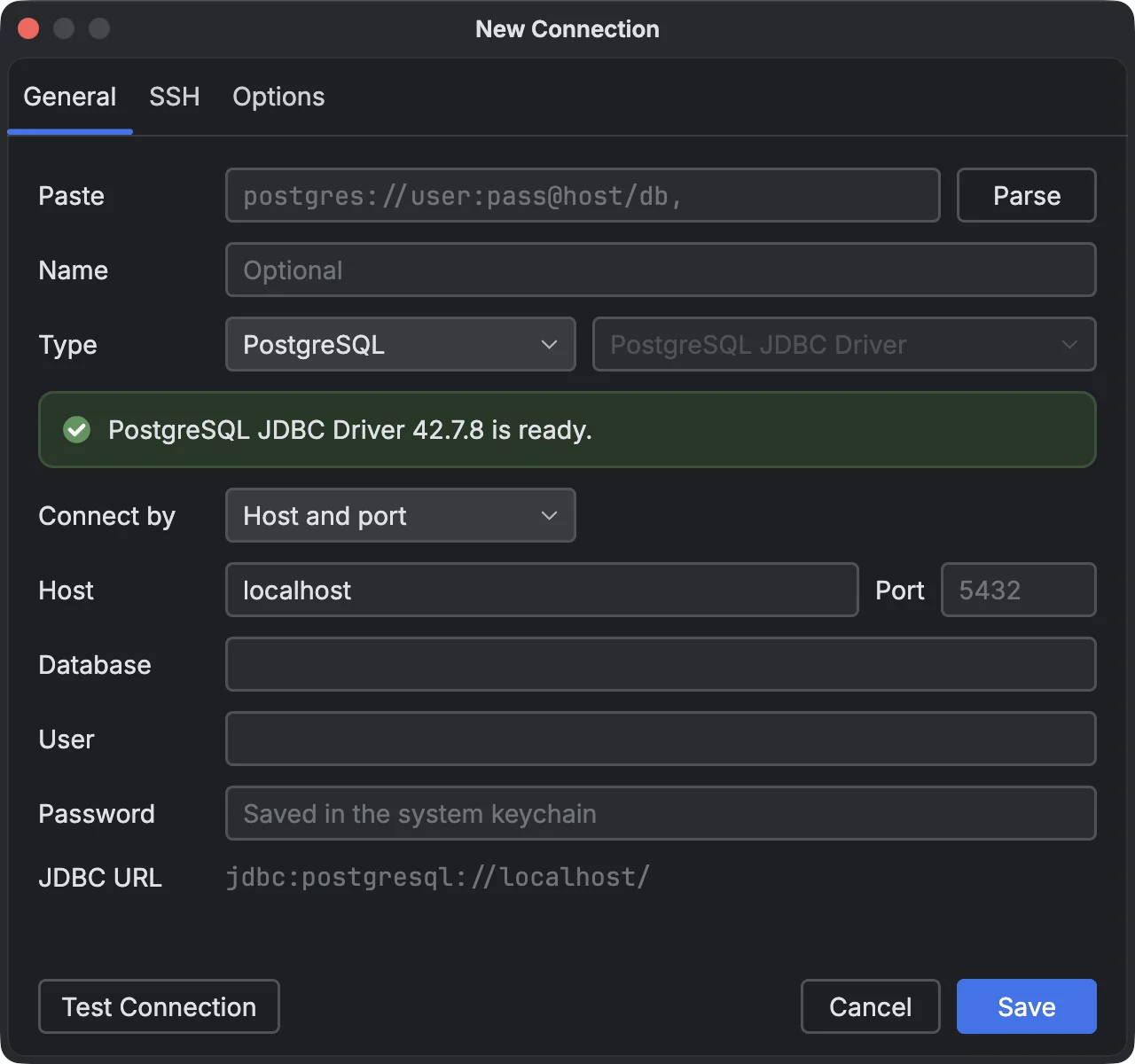
The dialog has three tabs: General, SSH and Options. Its buttons are Test Connection, Cancel and Save.
#General
| Field | What to enter |
|---|---|
| Paste | Any connection string. Click Parse to fill in the rest of the form from it. |
| Name | Optional. Shown in the explorer and on tabs; defaults to something built from the host and database. |
| Type | The database: PostgreSQL, MySQL, SQLite, MongoDB, Redis, Other (JDBC driver)… |
| Connect by | Host and port (or File for file databases), or a raw JDBC URL (Connection string for MongoDB). |
| Host, Port | The server. Several hosts can be listed as host1:port1,host2:port2. |
| Database | The database to open. For MongoDB it is optional: the database opened first, and the default auth source. |
| User, Password | Credentials. The password is saved in the system keychain. |
| File | For SQLite, DuckDB, H2 and data files: the file on disk (Browse…). |
#Paste a connection URL
Paste any of these into Paste and press Parse:
| Form | Example |
|---|---|
| libpq URI or keyword/value | postgresql://user:pass@h1:5432,h2:5433/app?sslmode=require · host=db port=5432 dbname='my db' |
| pgjdbc | jdbc:postgresql://[::1]:5740/accounting?currentSchema=app |
| MySQL / MariaDB | mysql://user:pass@host/db?ssl-mode=REQUIRED · jdbc:mariadb://host/db?sslMode=verify-full |
| Advanced Connector/J, MariaDB | jdbc:mysql:replication://…, address=(host=…)(port=…), kept as a raw JDBC URL |
| SQLite | jdbc:sqlite:/path/app.db · sqlite:///path/app.db · ~/data/app.sqlite3 |
| SQL Server, ClickHouse, DuckDB, H2, HSQLDB, Derby | jdbc:sqlserver://db:1433;databaseName=shop · jdbc:clickhouse://ch:8123/default · jdbc:duckdb:/data/a.duckdb |
| Redis, Valkey | redis://:pass@cache:6379 · rediss:// (TLS) · valkey://host |
| MongoDB | mongodb://user@host:27017/shop?authSource=admin · mongodb+srv://user@cluster0.example.net/shop |
| Data files | ~/exports/orders.csv, report.xlsx, events.ndjson |
| Any other JDBC driver | jdbc:firebirdsql://…, jdbc:oracle:thin:@… becomes Other (JDBC driver); then choose the driver's jar |
libpq parameters are translated to their pgjdbc names (application_name → ApplicationName, connect_timeout →
connectTimeout, target_session_attrs → targetServerType, ssl=true → sslmode=require).
Passwords found in a pasted string go straight to the keychain, never into the saved profile.
#Redis, etcd and friends
- Redis, Valkey, KeyDB, Dragonfly: host and port in the form. For a cluster or Sentinel, add the driver properties
mode=cluster, ormode=sentinelplussentinelMaster=…. Addssl=truefor TLS. - etcd: host and port (2379 by default); user and password if auth is on;
ssl=truefor HTTPS. etcd support is built in, so there is nothing to download.
#SSH
Turn on Connect through an SSH tunnel to reach a database that only listens inside a private network. The tab title shows a check mark (SSH ✓) while the tunnel is on.
| Field | What to enter |
|---|---|
| From config | Pick a Host from ~/.ssh/config. Follows Include and Host * defaults, and fills in the fields below. |
| Host, Port | The SSH server (the "jump" or "bastion" host). |
| User | Your SSH user. |
| Auth | Key pair or Password. |
| Key file, Passphrase | Leave Key file empty to use your default keys in ~/.ssh. The passphrase goes to the keychain. |
The Host on the General tab is then resolved from the SSH server, so localhost means the database on the SSH
host itself. SSH host keys you accept are remembered in ~/.tablegrip/known_hosts.
#Options
| Option | Effect |
|---|---|
| Environment | None, Local, Development, Staging or Production. Colours the connection everywhere; Production also turns on confirmations. |
| Group | The explorer folder this connection sits in, e.g. a project or client. |
| Read-only | Refuse statements that change data or schema, before they reach the server. |
| Confirm before running statements that change data or schema | Ask before every write. Turned on automatically for Production. |
| AI agents | What the AI agent may see for this connection, or Use default. |
| Driver properties | Extra settings passed to the driver, one key=value per line. |
See Safety & environments for what each safety option does.
#TLS / SSL
There is no separate TLS tab: TLS is set with the driver's own properties, under Options → Driver properties or as URL parameters. Some common ones:
| Database | Property |
|---|---|
| PostgreSQL | sslmode=require (or verify-full) |
| MySQL / MariaDB | sslMode=verify-full (MariaDB Connector/J) |
| SQL Server | encrypt=true |
| Redis, etcd | ssl=true |
Hosted presets set this for you: Neon and Supabase use sslmode=require, the hosted MySQL presets verify the
server's certificate, and Azure SQL comes with encryption on.
#Testing and connecting
Test Connection opens a connection with the current settings and reports success or the server's error, without saving anything. If the driver isn't installed yet, it offers to download it first; see Drivers.
After saving, click the connection in the explorer to connect. MySQL and MariaDB connections get a 10-second connect timeout where the driver would otherwise wait forever.