 TableGrip
Query & edit
Data grid
Browse, select, copy and edit rows. Changes wait for you to submit them, then run in one transaction.
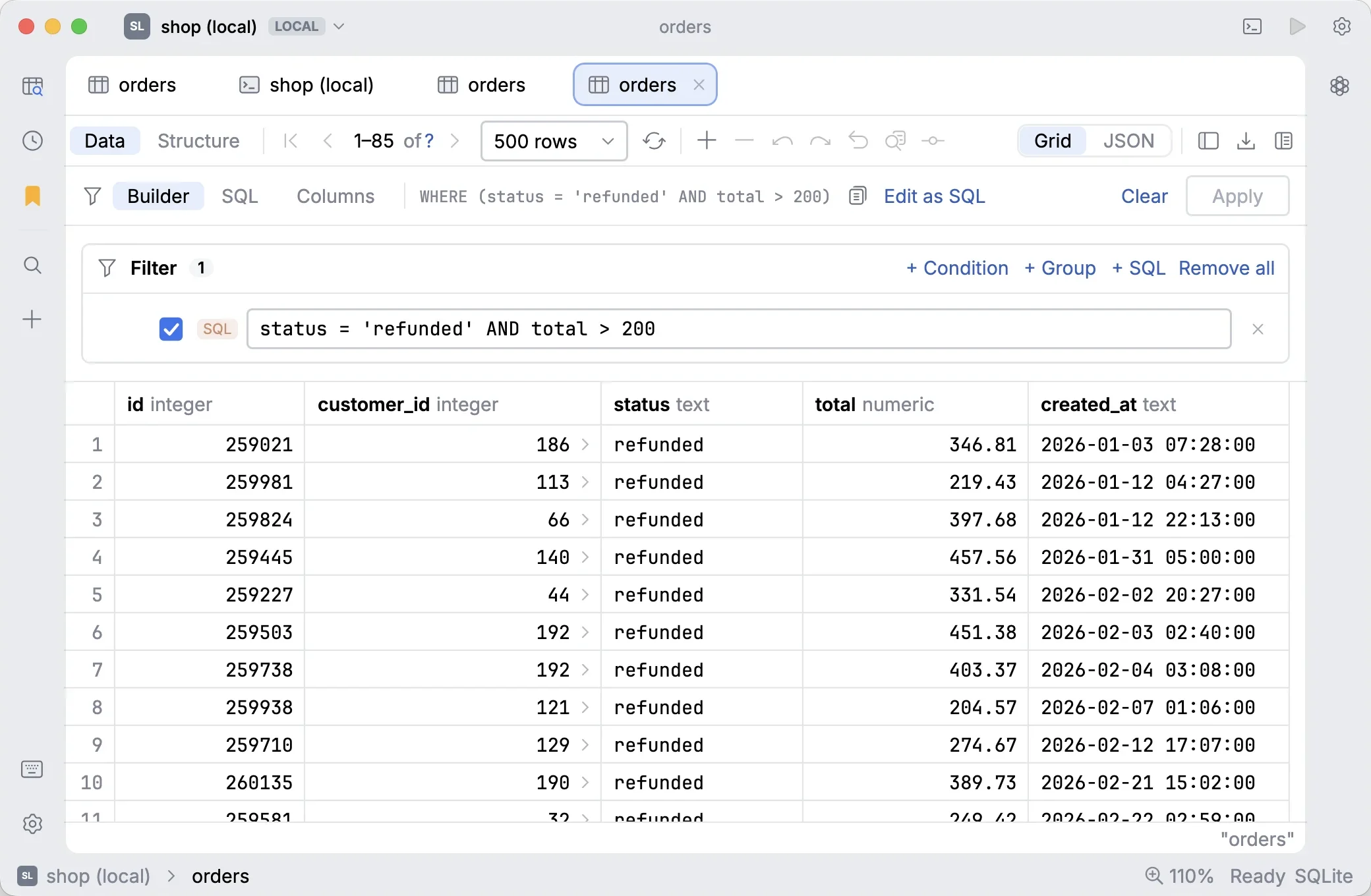
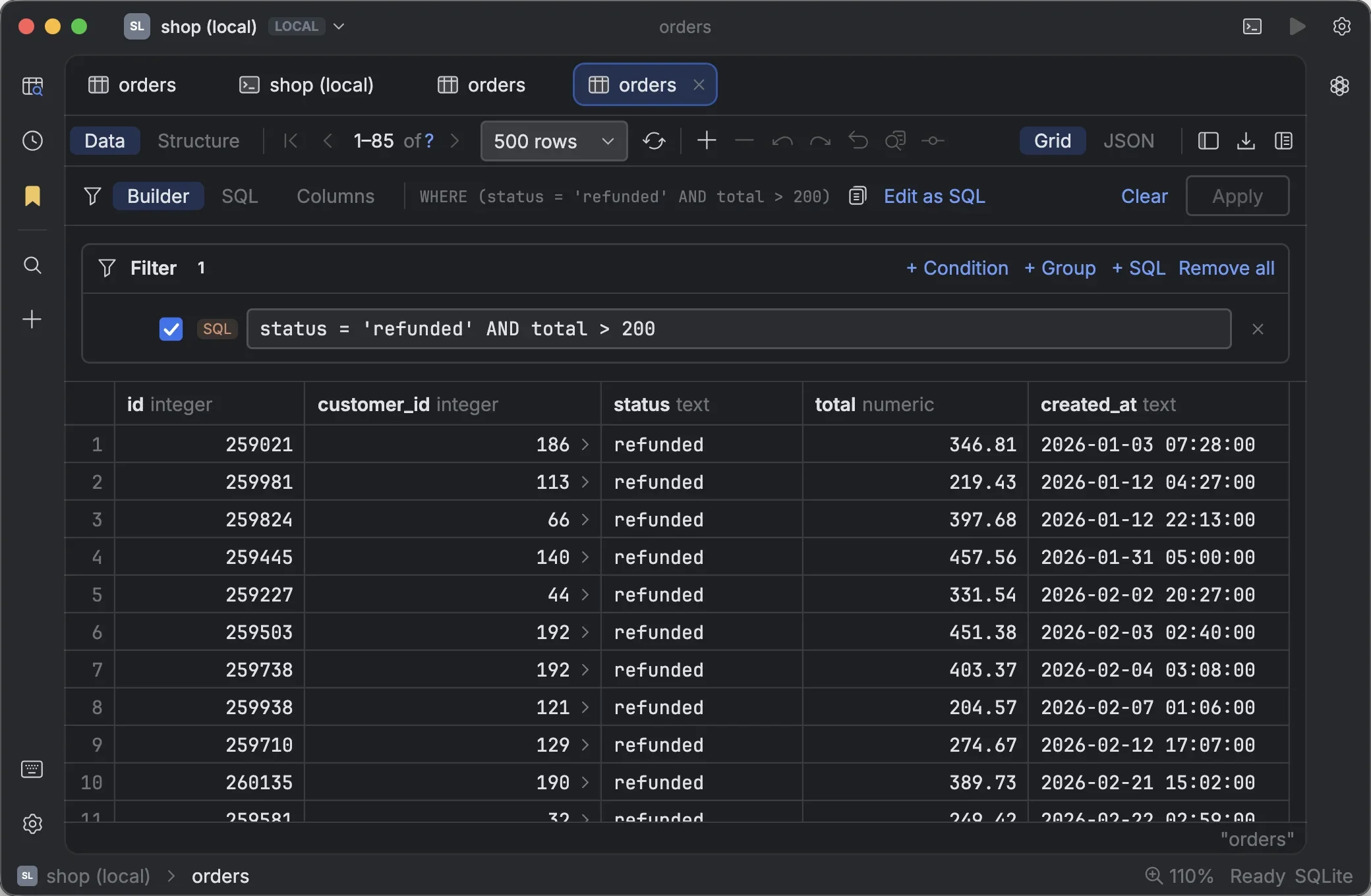
The data grid shows a table's rows when you open it from the explorer, and the results of every console query. It is the same grid in both places, with the same shortcuts.
#Moving around
Columns stretch to fill the width. Rows and columns are virtualised, so even very wide tables scroll smoothly, and row numbers stay pinned on the left.
- Resize a column: drag a header border. Double-click it to fit the content.
- Reorder columns: drag a header.
- Sort: click a header. ⇧-click another header to add a secondary sort.
- Hide or show columns: right-click a header.
| Action | Shortcut |
|---|---|
| Move / extend the selection | arrows / ⇧ arrows, Home / End, PgUp / PgDn, ⌘ ↑ ⌘ ↓ |
| Select all | ⌘ A |
| Copy (tab-separated) · copy with header | ⌘ C · ⇧ ⌘ C |
Selecting several cells shows their count, sum, average, min and max in the status bar.
#Editing data
Edits don't touch the database right away. They stay pending, highlighted in the grid, until you submit them.
| Action | Shortcut |
|---|---|
| Edit a cell | ↩, F2, double-click, or just start typing |
| Commit the edit · next cell · cancel | ↩ · Tab · Esc |
| Add a row | ⌘ N |
| Delete selected rows | ⌘ ⌫ |
| Revert selected rows | ⌥ ⌘ Z |
Set to NULL | ⌥ ⌘ N |
| Undo · redo | ⌘ Z · ⇧ ⌘ Z or ⌘ Y |
| Open a larger editor for the cell | ⇧ ↩ |
| Submit pending changes | ⌘ ↩ or ⌘ S |
| Reload the table | ⌘ R |
#How submitting works
- All pending changes run in one transaction: either all of them are saved, or none.
- If a row changed in the database since you loaded it, the submit is refused instead of overwriting someone else's change. Reload and try again.
- Tables without a primary key only allow inserts, because there is no reliable way to tell which row to update.
#Undo and redo
Undo and redo step through your pending changes one action at a time: a typed cell, a paste (with the rows it added), Set NULL over a selection, deleted rows, a row edited as JSON, even Revert all. Each undo selects the cell it touched and says what it undid. Nothing reaches the database until you submit, so you can experiment freely.
#Copying and exporting
Right-click a selection to copy it as CSV, JSON, Markdown, SQL INSERT statements or an IN (…)
list ready to paste into a WHERE clause.
To save rows to a file, use Export… in a table's toolbar, or Export result… under a console result:
| Option | Choices |
|---|---|
| Format | CSV, Tab-separated, JSON, SQL INSERT, Markdown |
| Include column names | For CSV and tab-separated files |
| Rows (tables only) | All rows (with the current filter and sort), streamed straight to the file, or Only the N rows loaded |
Export opens your system's save dialog to pick where the file goes.
#Foreign keys
Cells in a foreign-key column show a small arrow. Click it (or press ⌘ B) to open the referenced table, filtered to that row.
To go the other way, right-click a row → Show Referencing Rows: it opens the rows in other tables that point at this one, for example all orders of a customer.
#Filter by a value
Right-click a cell → Filter by This Value to add a typed condition to the filter bar. See Filtering data.
#Values that don't fit in a cell
Long text, JSON, binary data and images open in the value panel and the JSON editor. See JSON & cell values.