 TableGrip
Query & edit
SQL editor
Write and run SQL in a console with schema-aware completion, formatting, EXPLAIN and one-click fixes.
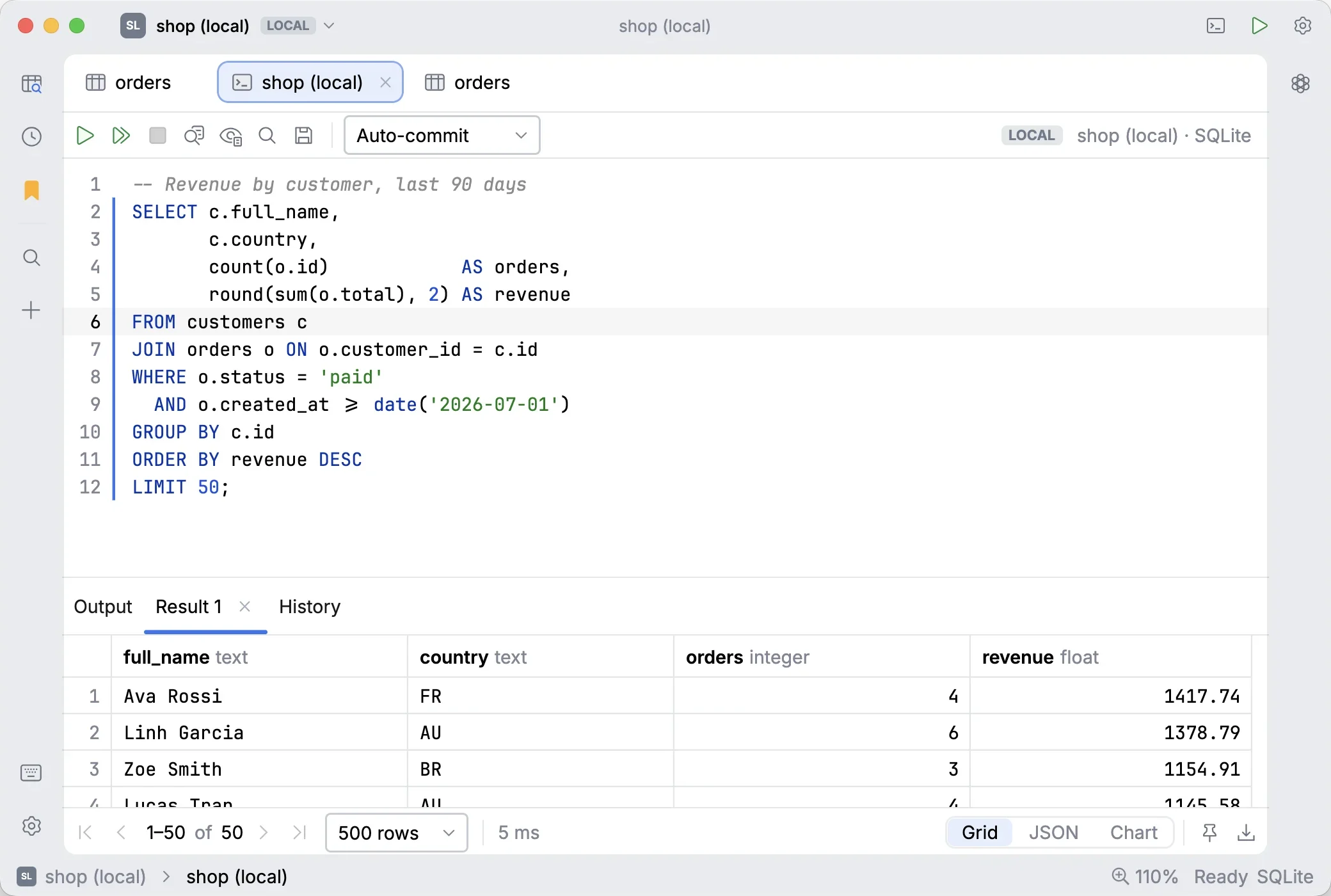
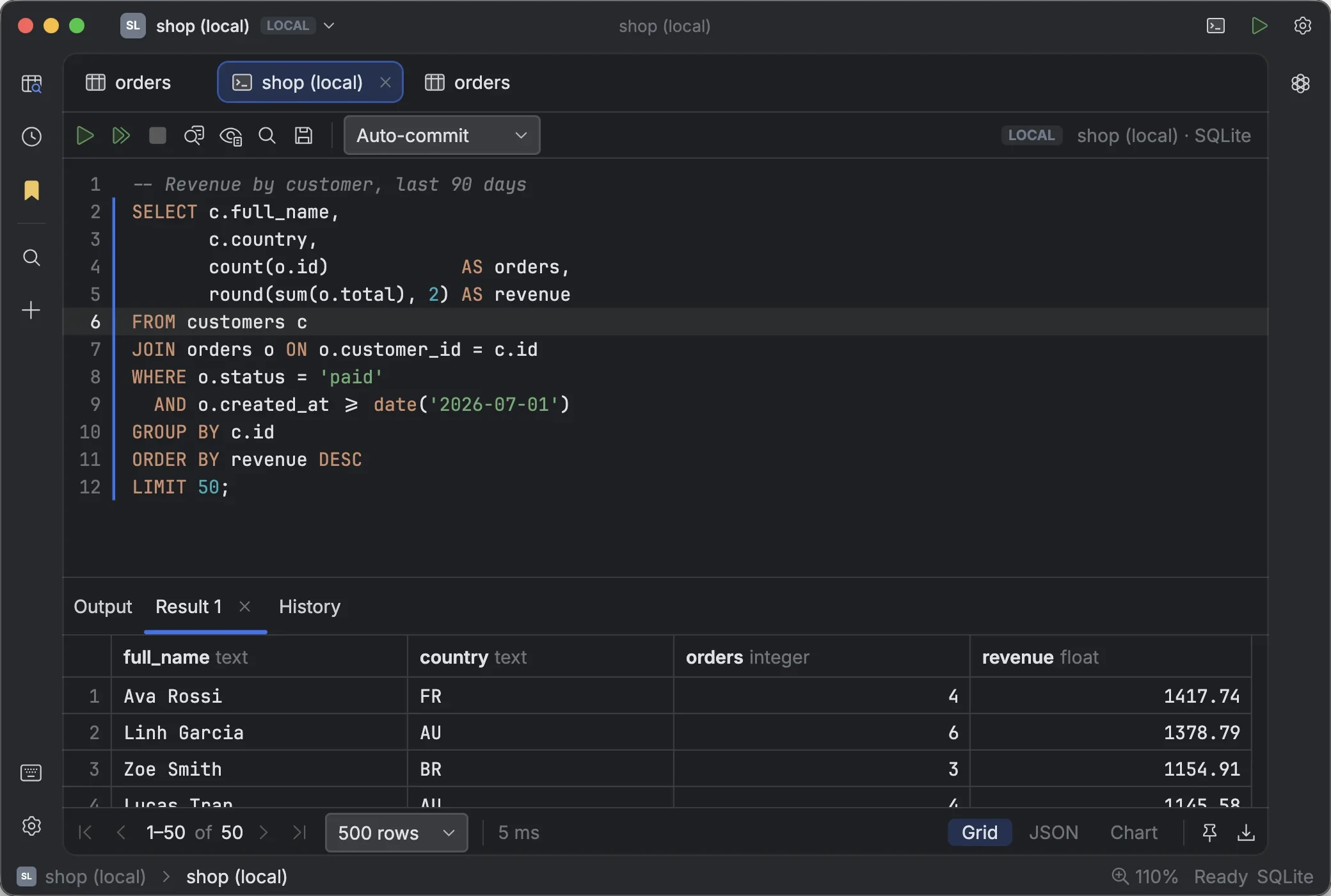
A console is a SQL editor tied to one connection, with its results underneath. Open as many as you like; each has its own session, so a long query in one doesn't block another.
#Running SQL
| To run | Press |
|---|---|
| The statement under the caret, or the selection | ⌘ ↩ |
| The whole script, statement by statement | ⇧ ⌘ ↩ |
| Cancel the running query | ⌘ . |
The gutter marks the statement ⌘ ↩ would run, so you always know what will execute. The toolbar has the same actions, plus Cancel, Explain, Reformat and Find.
A new console for the current connection is one keystroke away: ⌘ T. You can also right-click a connection → New Console.
Each statement's result opens in its own result tab. To keep a result while you run the console again, for example to compare before and after, right-click its tab → Pin Tab (or use the pin in its footer).
#Auto-commit and transactions
Consoles start in auto-commit: every statement is committed as soon as it succeeds. Switch to manual commit to run several statements, check the result, and then Commit or Roll back. Closing a console with an open transaction asks what to do with it.
#Completion
Completion appears as you type, or on demand with ⌃ Space. It understands the statement around the caret:
- After
FROM/JOIN: tables, views and schemas. - Columns of the tables and aliases in scope, qualified when several tables are joined.
- Members after
alias.orschema., and the columns of CTEs. - Whole join clauses from foreign keys: after
JOIN, it proposesJOIN orders o ON o.user_id = u.id. - Column lists in
INSERT INTO t (. - Operators after a column, plus functions and keywords.
- Real values: inside
col = '…'orcol IN (…), it suggests values sampled from that column.
Matching is fuzzy by word starts: uid finds user_id. Schema metadata loads lazily per connection and refreshes after
DDL or an explorer refresh.
#Editing
Syntax highlighting, line numbers, current-line and matching-bracket highlights, and auto-paired brackets and quotes are always on.
| Action | Shortcut |
|---|---|
| Completion | as you type, or ⌃ Space |
| Comment / uncomment lines | ⌘ / |
| Duplicate line | ⌘ D |
| Delete line | ⌘ ⌫ |
| Move line up / down | ⌥ ⇧ ↑ / ↓ |
| Indent / outdent | Tab / ⇧ Tab |
| Find · replace | ⌘ F · ⌘ R (↩ / ⇧ ↩ for next / previous) |
| Reformat SQL | ⌥ ⌘ L |
#Explain a query
Click Explain in the toolbar, or press ⇧ ⌘ E, to see the plan for the statement at the caret without running it.
#Result views
Each result can be shown three ways, switched from the result's toolbar:
- Grid: the data grid, with paging, selection and copy.
- JSON: the rows as JSON, paged like the grid.
- Chart: draws every fetched row as a Line, Area, Bar, Scatter or Pie chart. Pick the columns,
an aggregate (Value, Sum, Average, Min, Max, Count) and, for dates, a time bucket (Hour, Day, Week, Month, Quarter,
Year). When the result was cut short by the row limit, Aggregate on server runs the aggregation in the database
instead. Save a chart as PNG, or as SVG by ending the file name in
.svg.
How many rows a query fetches is set by Max result rows in Settings → Query Execution (1,000 by default).
#Fixing errors
When a statement fails, the output shows the error with three ways forward:
- Quick fix replaces a misspelt table or column with the closest real name. It uses the schema completion already knows, so nothing leaves your machine.
- Fix with AI asks the agent picked in the chat panel for a corrected statement.
- Ask in chat drafts a question about the error in the chat panel, for you to edit and send.
A fix is always shown as a diff first. Apply replaces the failed statement (⌘ Z undoes it); Apply & Run also runs it, through the usual safety checks. If a fix would change data where your original statement only read it, it is flagged and can't be run from the card.
#Safety checks when running
Some statements always ask before they run, whatever the connection: DELETE or UPDATE without WHERE, DROP and
TRUNCATE. On read-only connections, writes and DDL are refused before they reach the server. See
Safety & environments.